This guide is for bulk importing expenses via the import template option, if you are looking to capture expenses please see Capturing Expenses
Please note that imports are only available to service account users, if you do not have access to the imports tool please contact support@freshprojects.cloud to request a service account.
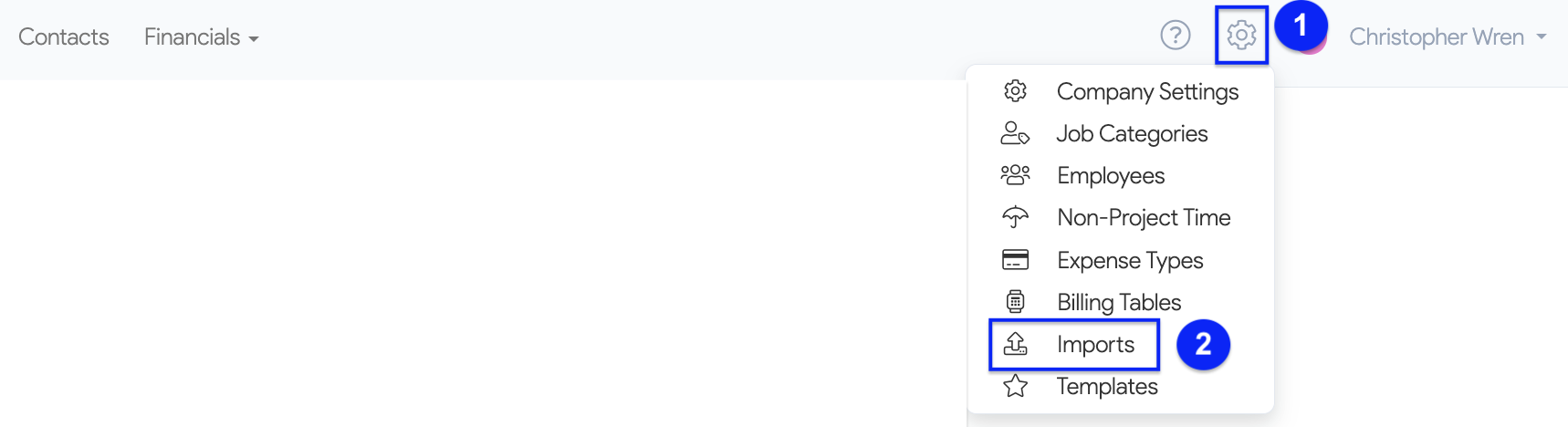
1. To get started type the following url into your address bar, https://live.freshprojects.app/u/#/2/imports, click on the Configurations tab ⚙︎ and select Imports from the dropdown list.
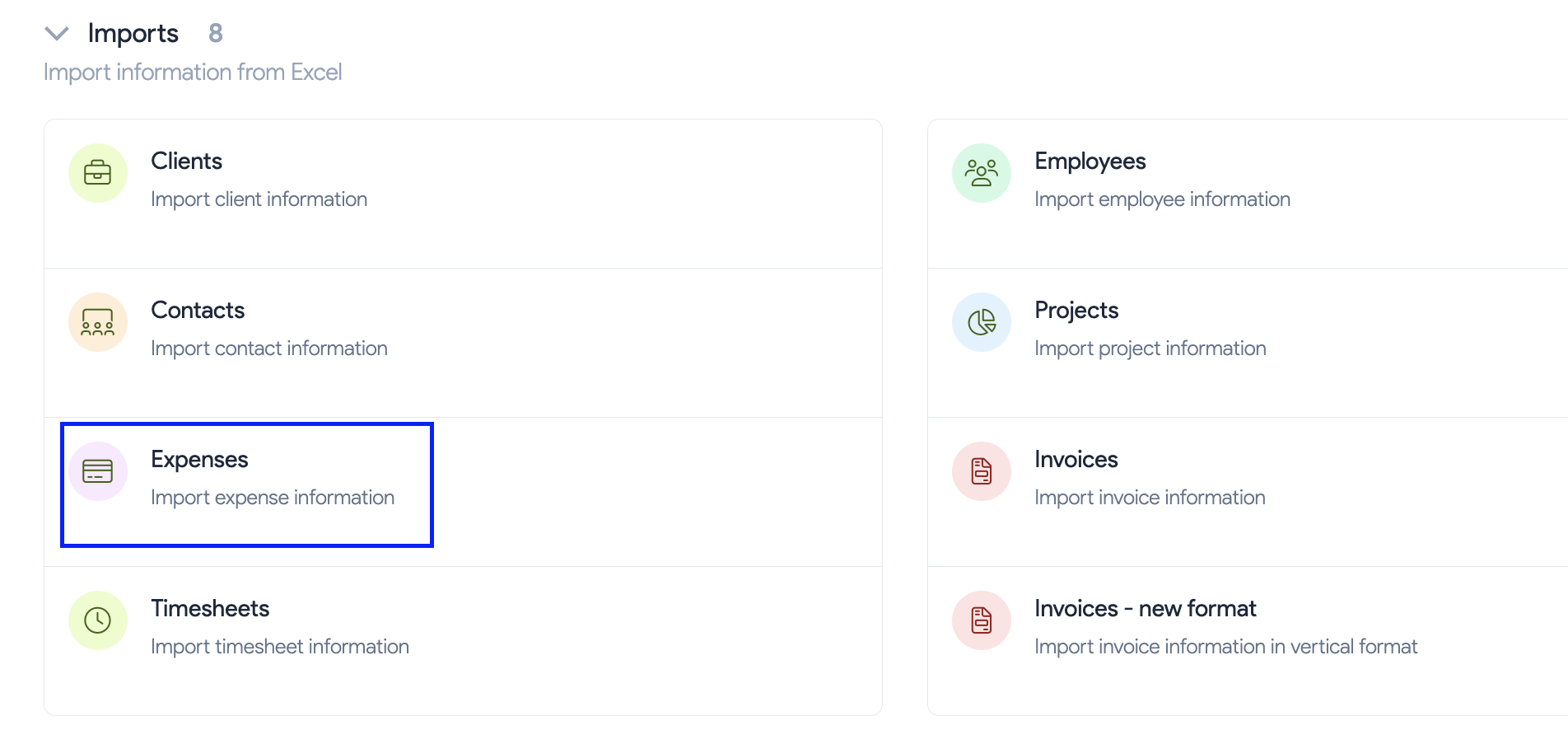
2. Once you are on the Imports page click on Expenses - Import expense information.
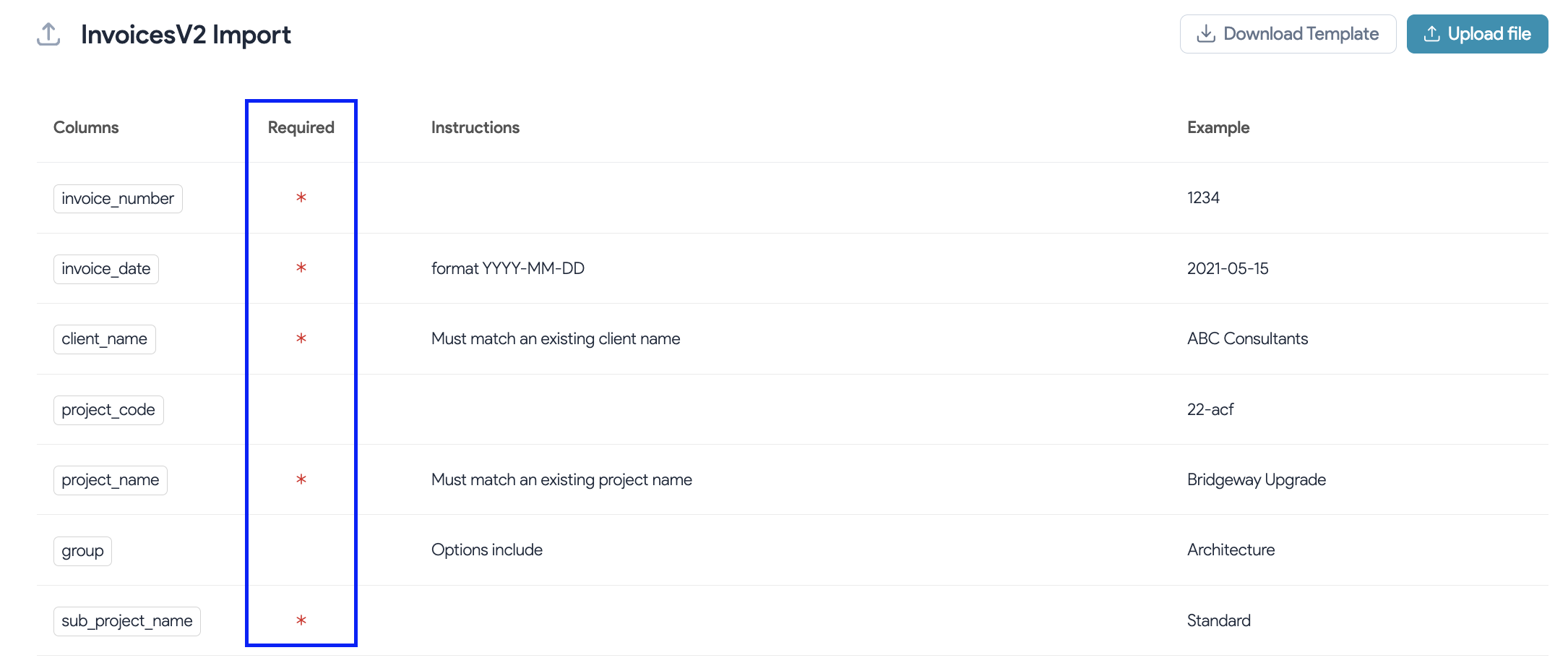
Note: the Required Fields are labeled with a " * " . Any fields without a star, are optional to complete.
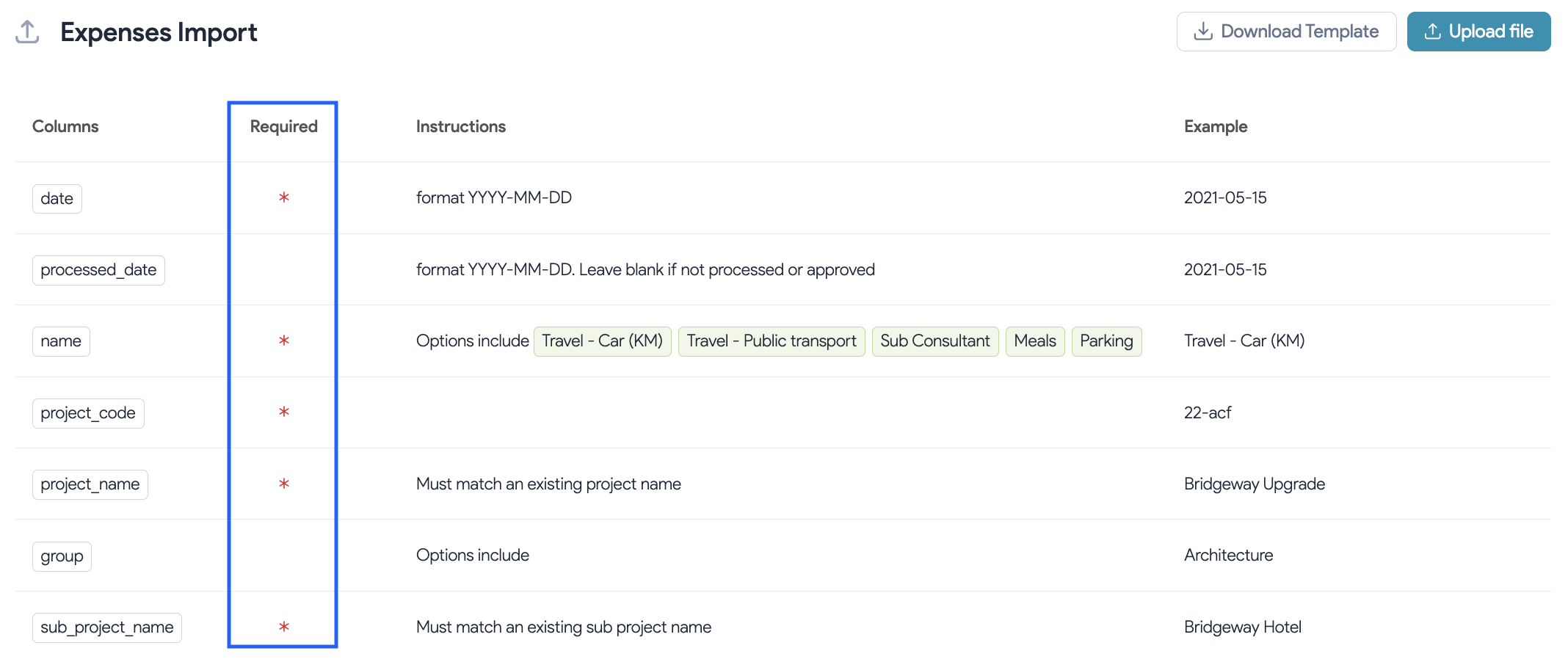
Note: Make sure to read the instructions for each column. They outline the required formats for your import. For example, all dates must be entered in the YYYY-MM-DD format.
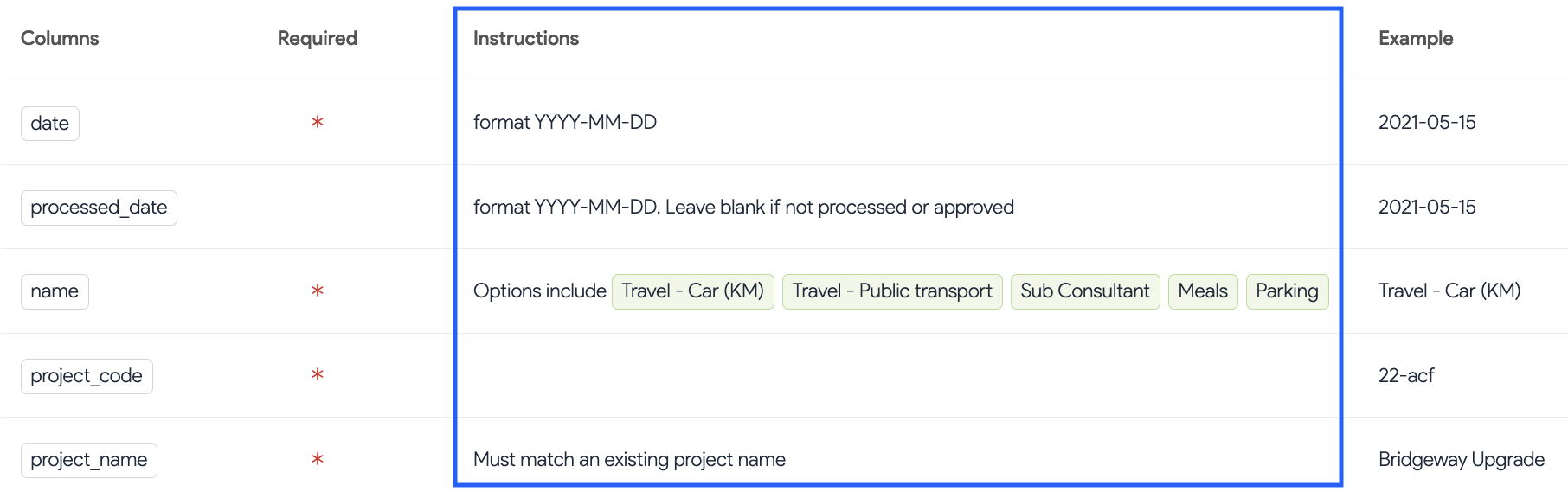
3. Click on Download Template to download the excel template for importing your bulk expenses.

4. Open the excel file and populate the information, making sure that all of the above "required fields" are completed.

5. Click on Upload File and add upload your completed template.

6. Your imported data will be displayed on the screen :
- Errors / typos will be noted in red. Click on the error to open a text edit box to fix it.
- Duplicates will be noted in purple.

7. You can also download your file to Excel to review any issues in bulk. The download will colour fill any cells that require attention in red or purple. 
Tip: Create a filter, and then sort your columns by colour. This will move all cells with errors to the top of your sheet, making it quick and easy to identify and correct any issues.

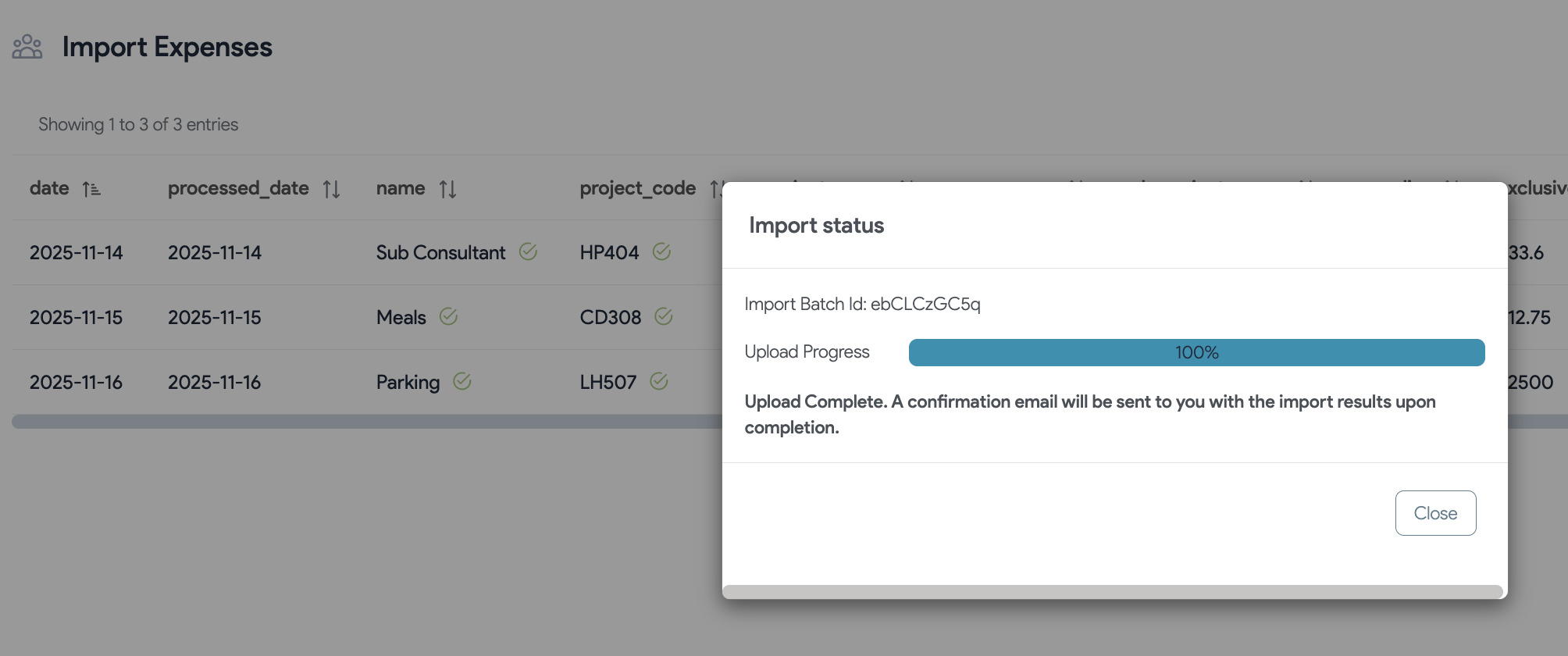
8. Once all errors are resolved you can click Import to complete the import.
9. You will get a message to let you know that the import has been a success.
10. To ensure all new imports sync correctly, go back to https://live.freshprojects.app/k/#/insight then go to the Configurations tab ⚙︎ and click Retotal All Projects.
Possible Error causes & Solutions
1. Duplicate Entries
When the system detects duplicate line entries, it will highlight them in purple:
- If the entry is a true duplicate - delete one of the duplicated lines
- If both entries are valid (e.g., travel to a location and return travel), you can combine the amounts into a single line item before re-importing

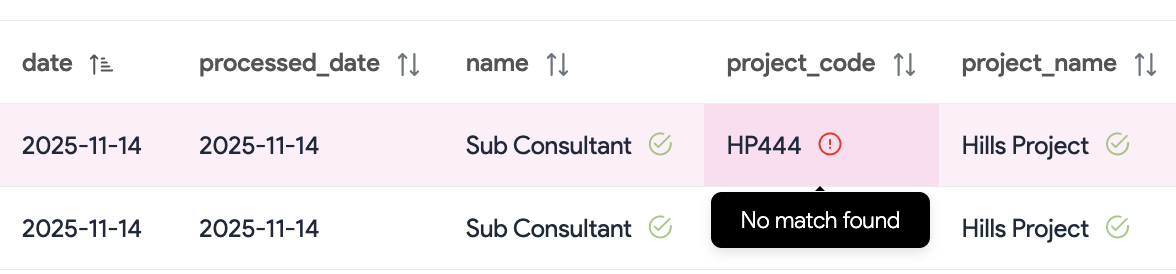
2. Incorrect Project Number
Ensure that the project number exactly matches the project number in the system. This includes all letters, numbers, hyphens, and other special characters.
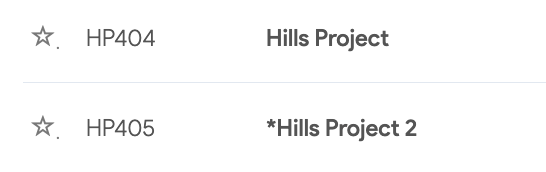
Example: HP444 should be: HP404
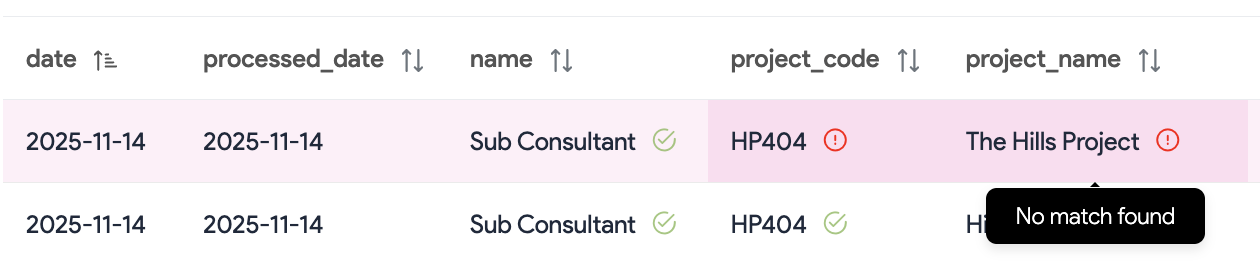
3. Incorrect Project Name
All project names must exactly match those in the system. This includes matching spelling, capital letters, spacing & special characters. Even a small variation will cause an import error.
Example: The Hills Project should be: Hills Project
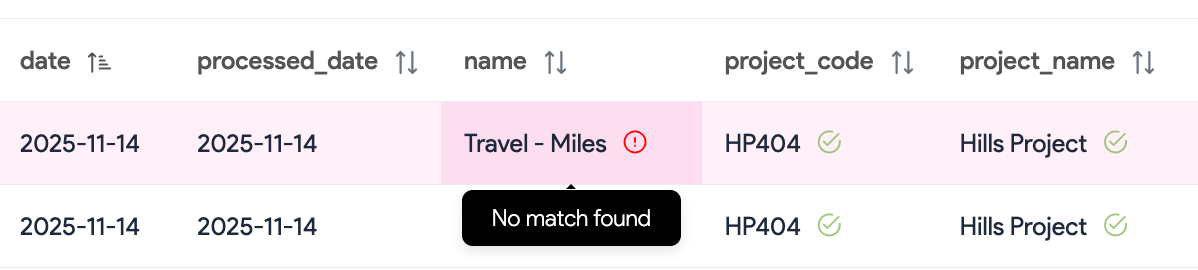
4. Expense Type does not exist
You must reference an expense type that already exists in the system. If this expense type is not yet in the system, please add it first before importing.
- Guide: Creating Expense Types
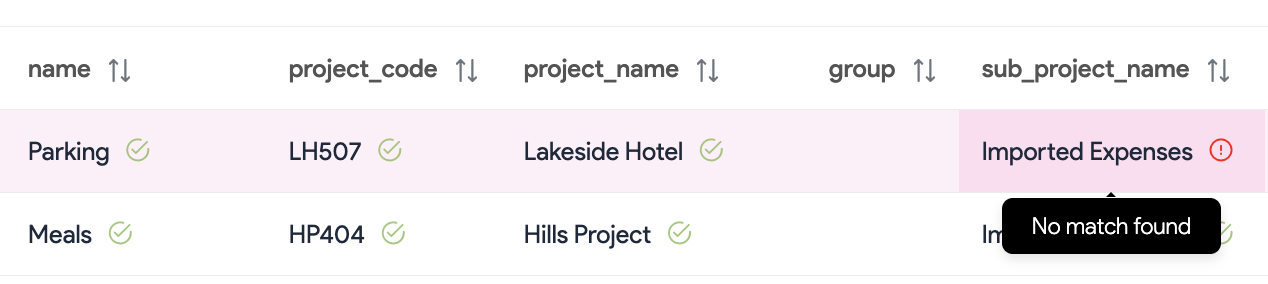
5. Missing Sub-Project
If you are importing expenses against a specific sub-project, ensure that the Main Project already contains that sub-project in the project structure. If it does not exist, simply add the sub-project first, and then proceed with the import again.
6. Duplicate Project Name
An error may occur if another project in the system shares the same name. To resolve this, you can either:
- Rename one of the projects entirely or
- Add a distinguishing special character " * " to make the project name unique.