
TABLE OF CONTENTS
- Overview
- Prerequisites
- Step 1 - Create your API token parameter
- Step 2 - Open a blank query
- Step 3 - Connecting with a GET request
- Step 4 - Connecting with a POST request (data feeds)
- Step 5 - Expanding the response into a table
- Tips + troubleshooting
Overview
This guide shows you how to connect Microsoft Power BI to the Fresh Projects REST API V2 using Power Query's Advanced Editor. Once connected, you can pull live project data directly into your Power BI reports and dashboards.
You will learn how to:
- Create a Power BI parameter to store your API token securely
- Navigate to the Blank Query editor in Power BI Desktop
- Write a GET request query for simple data endpoints
- Write a POST request query for data feed endpoints
- Expand the API response into a usable table format
Before you start: contact support@freshprojects.cloud to obtain your API key. You will need it in Step 1 below. |
Prerequisites
- Power BI Desktop installed
- A Fresh Projects API key (contact support@freshprojects.cloud)
- Basic familiarity with Power BI and Power Query
- Optional: review the Developer Docs at https://api-docs.freshprojects.app/ for available endpoints and parameters
Step 1 - Create your API token parameter
Rather than hard-coding your API token into each query, store it once as a Power BI parameter named FP_Token. Every query in this guide references that parameter, so if your key ever changes you only need to update it in one place.
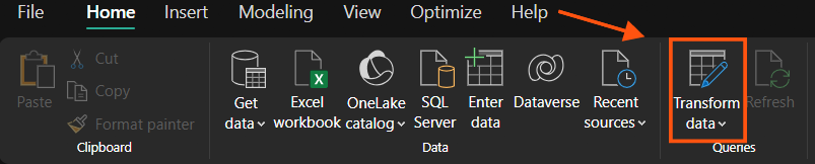
Step 1 Open Power Query Editor.
In Power BI Desktop, click Transform data in the Home ribbon to open Power Query Editor.
|
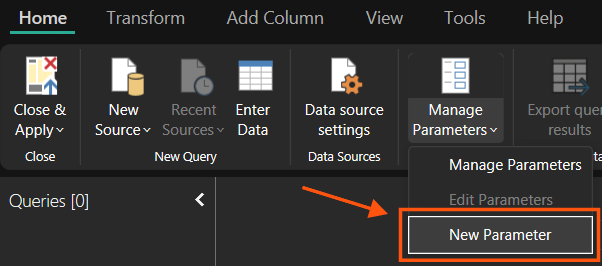
Step 2 Open Manage Parameters.
In Power Query Editor, go to Home → Manage Parameters → New Parameter.
|
Step 3 Configure the parameter.
Fill in the parameter dialog as follows, then click OK:
- Name: FP_Token
- Description: Fresh Projects API bearer token
- Type: Text
- Current Value: paste your API key here
|
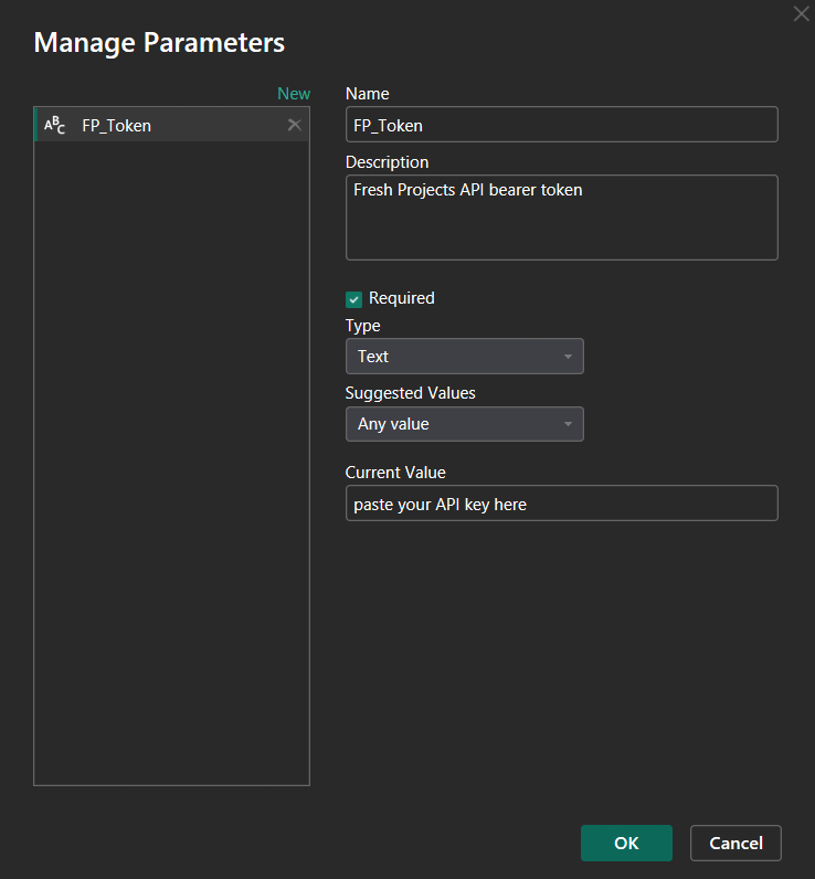
The parameter will appear in the Queries pane. All query templates in this guide reference FP_Token automatically — you do not need to touch the token again unless it changes.
Step 2 - Open a blank query
Each Fresh Projects data connection is a separate blank query with M-language code pasted into the Advanced Editor.
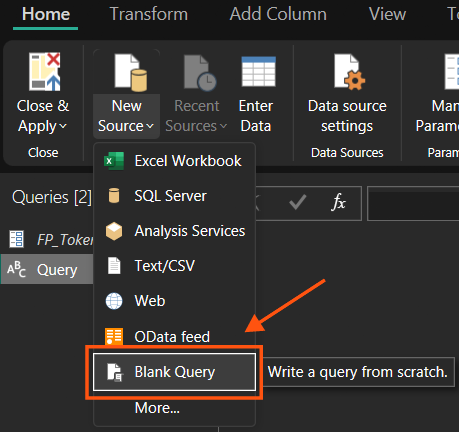
Step 1 In Power Query Editor, go to Home → New Source → Blank Query.
|
Step 2 Open the Advanced Editor.
Right-click the new query in the Queries pane and select Advanced Editor, or click Advanced Editor in the Home ribbon.
|
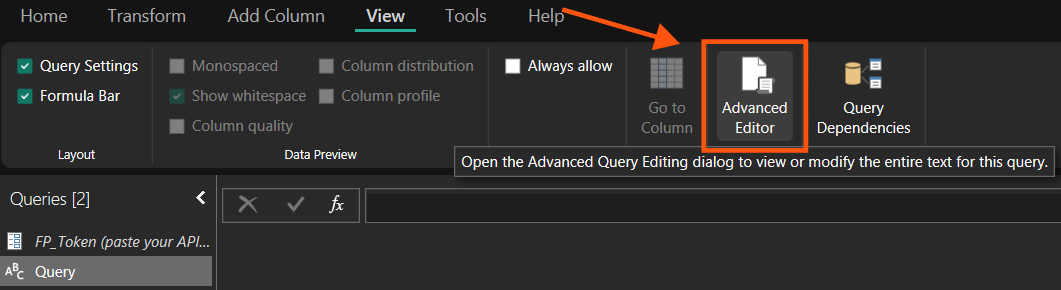
The Advanced Editor is where you will paste the M-language query code in the sections below.
Step 3 - Connecting with a GET request
The Fresh Projects API provides two GET endpoints that return simple reference data without requiring a request body. Use this query template for GET requests.
Example GET endpoint: GET https://api.freshprojects.app/v2/user/about-me Refer to the Developer Docs for all available GET endpoints. |
Query template - GET request
Copy the code below and paste it into the Advanced Editor. Update the Endpoint variable to match the endpoint you want to call, then click Done. The query uses the FP_Token parameter you created in Step 1 automatically.
let
    // ─── Configuration — edit this variable ──────────────────────
    BaseUrl   = "https://api.freshprojects.app/v2",
    Endpoint  = "/user/about-me",           // Change to your GET endpoint

    // ─── Request ─────────────────────────────────────────────────
    FullUrl   = BaseUrl & Endpoint,
    Source    = Json.Document(
                    Web.Contents(FullUrl, [
                        Headers = [
                            Authorization = "Bearer " & FP_Token,
                            Accept        = "application/json"
                        ]
                    ])
                )
in
    Source
Configuration variables
Variable | Example value | Description |
Endpoint | "/user/about-me" | The API path after the base URL. See Developer Docs for available GET endpoints. |
Step 4 - Connecting with a POST request (data feeds)
Most Fresh Projects API endpoints are POST-based data feeds. You POST a JSON body that specifies the date range and columns you want returned. The API responds with a rows array that Power BI can expand into a table.
Example POST endpoint: POST https://api.freshprojects.app/v2/project-balances/datafeed Refer to the Developer Docs for all available data feed endpoints, required fields, and available column names. |
Query template - POST request
Copy the code below and paste it into the Advanced Editor. Update the Endpoint and the Body JSON to match the data feed you need. The query uses the FP_Token parameter you created in Step 1 automatically.
let
    // ─── Configuration — edit these variables ───────────────────
    BaseUrl   = "https://api.freshprojects.app/v2",
    Endpoint  = "/project-balances/datafeed",  // Change to your POST endpoint

    // ─── Request body — refer to Developer Docs for available
    //     and required columns for each endpoint ──────────────────
    Body      = "{
        ""startMonthCode"": ""202501"",
        ""endMonthCode"":   ""202612"",
        ""columns"": [
            ""projectId"",
            ""projectCodeAndName"",
            ""subProjectId"",
            ""subProjectName"",
            ""monthCode"",
            ""totalHours""
        ]
    }",

    // ─── Request ─────────────────────────────────────────────────
    FullUrl   = BaseUrl & Endpoint,
    Source    = Json.Document(
                    Web.Contents(FullUrl, [
                        Headers = [
                            Authorization  = "Bearer " & FP_Token,
                            #"Content-Type" = "application/json"
                        ],
                        Content = Text.ToBinary(Body)
                    ])
                )
in
    Source
Configuration variables
Variable | Example value | Description |
Endpoint | "/project-balances/datafeed" | The API path. See Developer Docs for available data feed endpoints. |
Body (startMonthCode) | "202501" | Start of the date range in YYYYMM format. |
Body (endMonthCode) | "202612" | End of the date range in YYYYMM format. |
Body (columns) | ["projectId", …] | Array of columns to return. Check Developer Docs for required vs. optional columns per endpoint. |
Step 5 - Expanding the response into a table
After clicking Done in the Advanced Editor, Power Query will execute the request and display the raw API response as a record or list. The steps below show how to expand this into a flat table.
Step 1 Inspect the response in Power Query Editor.
After the query runs successfully, you will see a single record (for GET responses) or a list (for POST data feeds).
|
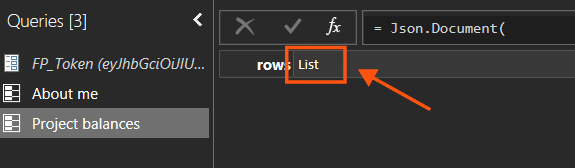
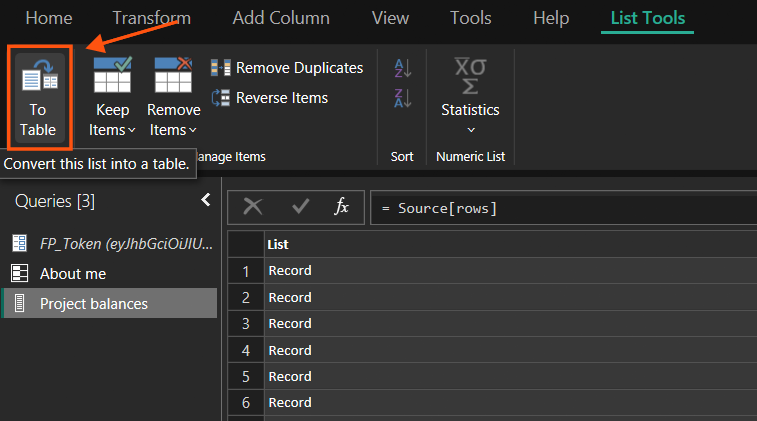
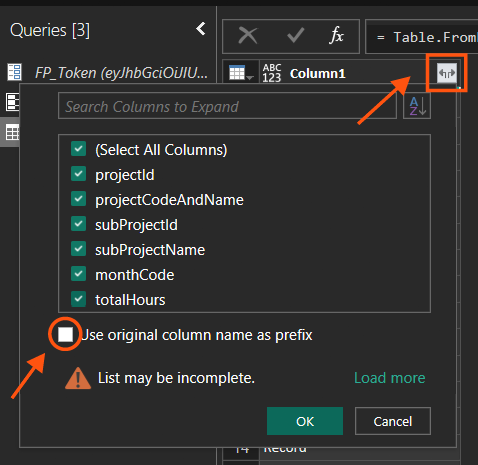
Step 2 For POST data feeds - expand the "rows" list into records.
Click on the List value in the query result. In the toolbar, click "To Table" to convert the list into a single-column table. Then click the expand icon on the Column1 header and select the columns you want to include.
|
|
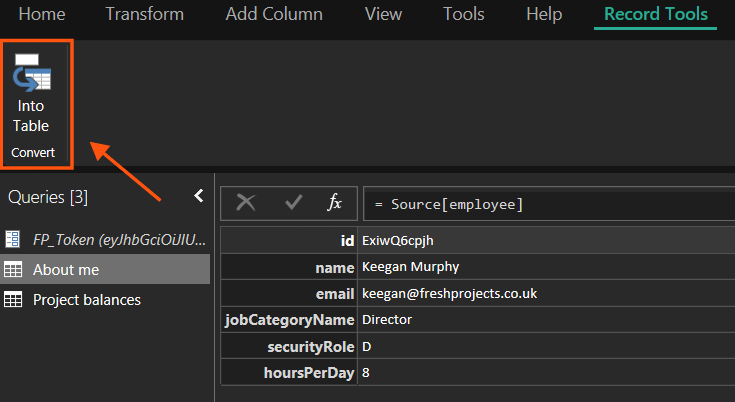
Step 3 For GET requests - convert the Record to a table.
Click on the Record value. In the toolbar, click "Into Table" to convert it into a two-column key/value table. You can then pivot or filter as needed.
|
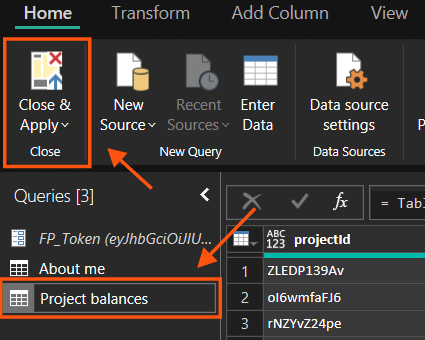
Step 4 Rename and close.
Rename your query in the Queries pane on the left (double-click to rename). Then click Close & Apply to load the data into Power BI.
|
Tips + troubleshooting
Refresh and credentials
If Power BI prompts you for credentials when running the query, select "Anonymous" - authentication is handled by the FP_Token parameter inside the query code itself, not by Power BI's credential manager.
Date range performance
For large data sets, keep your date ranges tight. The API returns all matching rows in a single call, so requesting several years of data on a large portfolio may be slow. Consider splitting into multiple queries by year if needed.
Developer Docs
Each data feed endpoint has its own set of required and optional columns. Always refer to the Developer Docs before configuring the Body JSON for a new endpoint:
https://api-docs.freshprojects.app/
Support
For API key requests or technical support, contact the Fresh Projects team:
Migrating from Snowflake Connection
Once you are satisfied with your new API connection, remove the Snowflake data source from your Power BI file. You do not need to take any action on the Keboola side - Fresh Projects will retire that infrastructure as well as your Snowflake database.